Introduction to the timeline framework
Animation in PowerPoint refers to the special effects that can be applied to the shapes on the slides to enhance the visual appeal, immerse the audience with sound and emphasize the topic of the presentation.
In PowerPoint 97/2000 users were limited to entry animations and had to cough up limited workarounds to give the effect of motion, exit, emphasis etc. PowerPoint 2002 comes with completely redesigned animation engine. It introduces all the missing elements of animation engines in PowerPoint 2002/2003. It is so powerful that developers can create their own animations. However it suffers from a buggy object model and there are plenty of pitfalls to watch out for. Still it is one of the best things to happen to PowerPoint. This new engine can be found in the new object – Timeline.
Before we delve into the inner workings of this new object; let me offer a few words of caution. Do not use the legacy AnimationSettings object in Microsoft PowerPoint 2002/2003. The legacy objects provide backward compatibility but they can mess up things when used in conjunction with the new animation effects. As mentioned earlier the older versions of Microsoft PowerPoint had just entry effects. If you use the AnimationSettings object in the new version to set any animation property, Microsoft PowerPoint will delete all animations which were not supported in the earlier versions from the animations that were already set on the slide. That said, you can use the AnimationSettings object to retrieve any information that the Timeline does not provide.
Apart from the new animations the most notable addition to newer versions of Microsoft PowerPoint is the support for interactive animation- Triggers. You can now set one or a series of animations that be fired upon click of a shape.
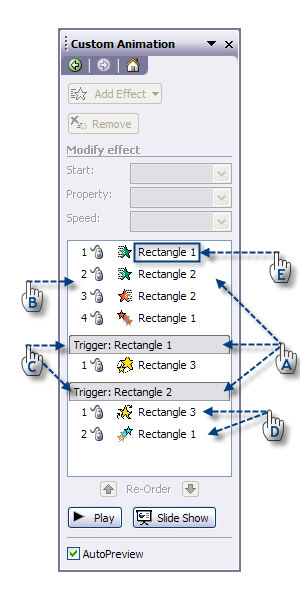
Each slide or a slide master or a title master can have only one Timeline. The Timeline is a collection of screenplay objects called Sequences (See A in the image below). Each sequence represents the manner in which the PowerPoint will animate a shape, the duration, the mechanism etc. A Sequence can be either of the following type:
-
MainSequence (B) – Conventional animations which appear linearly in the slideshow and begins as soon as the slide is displayed. Each slide can have only one MainSequence.
-
InteractiveSequence (C)– Animations which can be fired, independent of the linear animations out of sequence, by clicking the mouse on a shape. There is no limit on the number of InteractiveSequence objects in the slide.
The Sequence in turn is a collection of Effects (D). Each effect is a distinct animation applied to a shape e.g. An Appear effect or Fly-out effect. An effect is made up of a collection of Behaviors – the fundamental building blocks – which contain information about the behavior of the animation. The behaviors are not exposed to the user through the UI but can be accessed through the object model. Using behaviors you can create your own truly custom animations.
Accessing the information shown on the Custom Animation task pane
Please refer to the figure. I've created a slide with 3 shapes (Rectangle 1, Rectangle 2 and Rectangle 3). I've also assigned animations to them. Let us look at some code snippets to retrieve the information we just discussed above.
' Get the
information of the Timeline on the 1st slide.
With
ActivePresentation.Slides(1).TimeLine
' Get the number of interactive
sequences.
' It will return 2 (C on the image)
MsgBox CStr(.InteractiveSequences.Count)
' Get the number of effects in the Main
Sequence.
' It will return 4 (B on the image)
MsgBox
CStr(.MainSequence.Count)
' Get
the number of effects in the 2nd Interactive Sequence.
' It will
return 2 (refer to point D on the image)
MsgBox
CStr(.InteractiveSequences(2).Count)
End With
The caption (refer to point E on the image) that appears in the Task pane for any assigned animation is available in the DisplayName property for that effect. It is a read-only property. Just when you think you know enough, PowerPoint throws a mind bender. The names displayed in the custom animation task pane - the DisplayName - are not the same as the names that you get when you query the Name property for the shape.
The caption (refer to point E on the image) that appears in the Task pane for any assigned animation is available in the DisplayName property for that effect. It is a read-only property.
With ActivePresentation.Slides(1).TimeLine
' Enumerate the captions displayed
in the custom animation
' pane for theMain Sequence.
Dim I as Integer
For I = 1 To .MainSequence.Count
MsgBox "Caption : " & .MainSequence(I).DisplayName
Next I
End
With
Just when you think you know enough, PowerPoint throws a mind bender. The names displayed in the custom animation task pane - the DisplayName - are not the same as the names that you get when you query the Name property for the shape.
For a title placeholder PowerPoint will add a
suffix 'Title <#>:' to caption. <#> represents the z-order
number of the title shape.
For a paragraph that is animated it will display
the text.
For autoshapes and org charts it uses a
convention '<shape type><#>'.
For images it displays the filename
without extension.
For diagrams it uses the convention 'Diagram <#>'.
Note that <#> for all effects assigned to a given shape will change in the task pane if you change the z-order position of that shape in the PowerPoint slide. The numbers in the task pane will no longer reflect the true z-order of the remaining shapes. To illustrate this whacky behavior, create a new presentation with a blank slide. Draw two rectangles on it. Now assign one animation to shape 1 and shape 2. The will appear in the task pane as Rectangle 1 and Rectangle 2. Now, select the 2nd shape on the slide; right-click it and select 'Order | Send to Back'. Immediately you will notice that the 2nd name in the custom animation task pane has changed to Rectangle 1 too. Closing the task pane and restoring it has no effect, you will still see the same names thought they are animations assigned to different shapes. Confusing isn't it?!
So then how does one arrive at the real name of the shape? The answer lies in the Shape object reference found within the effect applied.
' Get the real
name of the shape which has been assigned the effect
With
ActivePresentation.Slides(1).TimeLine
MsgBox
.MainSequence(1).Shape.Name
End With
Bug #1 If
you try to get a reference to the shape that has been assigned any
media effect you get an error.
To determine how the animation is being triggered (on mouse click, with previous animation or after
previous animation) retrieve the information from the Timing
object for a given effect.
With ActivePresentation.Slides(1).TimeLine
' Get the trigger type for the 1st
effect in the main sequence.
Select Case
.MainSequence(1).Timing.TriggerType
Case
msoAnimTriggerOnPageClick
MsgBox "Animation
triggered on mouse click"
Case msoAnimTriggerWithPrevious
MsgBox "Animation triggered with previous animation"
Case
msoAnimTriggerAfterPrevious
MsgBox "Animation
triggered after previous animation"
Case
msoAnimTriggerOnShapeClick 'Triggered animation
MsgBox "Animation triggered by clicking on shape"
End Select
End With
Summary
A slide contains one and only one Timeline. The Timeline contains Sequences, one MainSequence and Interactive Sequences (none, one or more per slide). Each Sequence is made up of Effects. Effects are collections of Behaviors.